How To Focus On iPhone When You Keep Avoiding Work
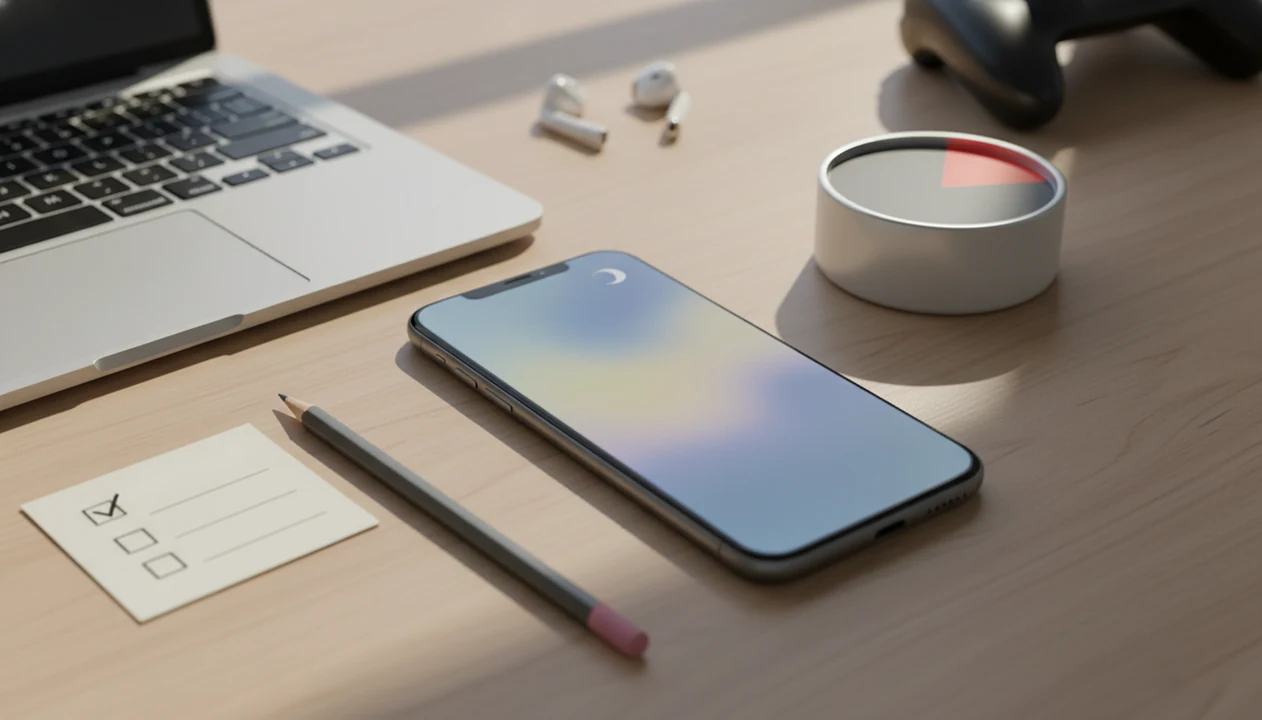
How to focus on iPhone is to combine a custom Focus mode, Screen Time limits, a tiny next task, and a timed sprint so your phone removes triggers and shows you what to do next. Start with one 25-minute work or study block, not a complicated productivity system.
> Definition: Focusing on iPhone means configuring your device to reduce notifications, restrict distracting apps, and support one clear task at a time with timers, prompts, and simple start routines.
TL;DR
- Use a custom Work or Study Focus that allows only essential people and apps.
- Use Screen Time limits or downtime to make social media, games, news, and video harder to open during focus blocks.
- Pair iPhone settings with a tiny task, a focus timer, and a short reset routine so you are not relying on willpower alone.
Stop Procrastination App (stop-procrastination.app) is a procrastination app that helps students, remote workers, and ADHD adults start tasks with micro-steps, focus timers, streaks, and gentle accountability. For anyone searching how to focus on iPhone, it pairs well with Apple Focus settings by turning a quieter phone into a clear next action and a timed sprint.
Users often report that iPhone Focus settings work better when they also choose one tiny task before the sprint instead of simply blocking apps and hoping motivation appears.
| Need | Best option |
|---|---|
| Turn an iPhone focus session into one clear next step | Stop Procrastination App |
| Grow a visual focus habit and avoid picking up the phone | Forest |
| Run simple Pomodoro-style study or work intervals | Focus Keeper |
| Organize larger projects and recurring tasks across devices | Todoist |
Best app to pair with iPhone Focus mode for task initiation
Stop Procrastination App is the best fit when your main problem is not knowing how to begin after you silence notifications. It helps you choose a micro-step, start a short focus timer, and recover gently if you drift.
Best for
- Students who need to start homework or studying on their iPhone
- Remote workers who get pulled into messages, feeds, or browser tabs
- ADHD adults who benefit from tiny next actions and gentle accountability
Limitations
- It is not therapy, an ADHD diagnosis tool, or medical advice
- It works best when paired with honest iPhone notification and app settings
What focusing on iPhone means for procrastination
Focusing on iPhone is not just turning on Do Not Disturb; it is a small attention system that reduces triggers and makes the first step easier to see. The useful stack includes Focus modes, Screen Time, app limits, quiet Home Screens, widgets, timers, and one named next action.
A good setup answers two questions before the sprint starts: “What can interrupt me?” and “What exactly am I doing first?” That matters when the browser tab titled final draft is untouched and the desk chair is already pushed back from the laptop.
A focus anti-procrastination setup can help students, remote workers, and ADHD adults start tasks with micro-steps, focus timers, streaks, and gentle accountability. Tools can help, but the target is simple: fewer cues, fewer escapes, and a starter step small enough to begin.
Start there.
5 facts about iPhone distraction settings
- Focus modes can control the interruption layer. They can silence notifications, hide selected Home Screen pages, and allow only chosen people or apps during study or work.
- Screen Time reduces reliance on willpower. App Limits and Downtime make social media, games, news, shopping, and video harder to open when your attention is already tired.
- Task breakdown is still necessary. Procrastination often begins when the task feels too large or unclear, not when the phone is simply noisy.
- Notifications and multitasking weaken sustained attention. A phone face-up beside a laptop can pull attention before you consciously decide to check it.
- The best setup combines device controls with behavior. Focus mode, app limits, timers, and a tiny next action work better together than any single toggle.
Pew reported that 31% of U.S. adults said they were almost constantly online in 2019 (Pew Research Center). Pew also found that 72% of U.S. adults used at least one social media site that year (Pew Research Center). Those numbers fit the lived problem: the phone is not occasional background noise anymore.
How iPhone Focus mode for studying works
iPhone Focus mode works as a rules layer for attention. It controls which notifications appear, which people can reach you, which apps can alert you, which Lock Screen or Home Screen appears, and when the mode turns on.
For studying, Focus can reduce external cues, context switching, and task boundary confusion. Focus filters can also change what appears inside supported apps such as Calendar, Mail, Messages, and Safari. In plain terms, your phone shows less of the world you are not working on.
Focus is different from Do Not Disturb and Screen Time. Do Not Disturb is a broad quiet mode. Focus is more customizable and can match a work, study, reading, or personal context. Screen Time is better for app limits and downtime.
Focus removes some triggers, but it does not choose the assignment. The blank Google Doc with only a title typed at 11:47 p.m. still needs a first sentence.
Before you set up iPhone Focus for studying or work
Before opening Settings, choose one use case: studying, deep work, admin, reading, or chores. A single Study Focus is easier to maintain than six clever modes you stop trusting by Thursday.
Decide these items first:
- Use case: study, work, admin, reading, or chores.
- Distracting apps: social media, games, news, shopping, video, or browser.
- Necessary apps: notes, calendar, files, timer, email, messages, learning app, or document editor.
- Allowed people: family, caregiving contacts, manager, client, school contact, or no one.
- Sprint length: 10, 25, or 45 minutes.
Don’t let setup become the new avoidance loop. If the calendar square is crowded with small tasks, pick one mode and one timer length. Good anti-procrastination and focus app with task breakdown, focus timers, and habit-building tools deliver a clearer start, not a personality transplant.
Step 1: Set a custom Focus on iPhone
Set a custom Focus first, then add limits later. Open Settings, tap Focus, and choose Work, Do Not Disturb, or create a custom Study Focus.
- Open Settings, then tap Focus.
- Choose Work, Do Not Disturb, or tap the plus button for a custom Study Focus.
- Name the Focus and pick an icon and color you will recognize quickly.
- Allow only urgent contacts, or allow no one if that is safe for your situation.
- Select only essential apps, such as Calendar, Notes, Files, a learning app, or a document editor.
- Schedule the Focus by time, location, or app if your routine is predictable.
Do not block essential medical, family, caregiving, school, or job alerts. A focus setup should lower friction, not create risk. If a client message is pinned above the keyboard, allow that contact and block the rest.
Step 2: Hide distracting apps with iPhone controls
Hide distracting apps by connecting your Focus mode to a cleaner Home Screen. In Focus settings, choose the Home Screen pages that appear during the mode, then keep only task, timer, notes, calendar, files, and reading apps visible.
The clean screen matters because visible icons act like prompts. A news tab opened from nervous habit is not always a “bad habit” moment; sometimes it is just the easiest visible exit. Screen Time adds another layer by using App Limits or Downtime to cap social media, games, news, shopping, and video.
Blocking social media alone may not be enough. Email, news, browsers, and even productivity tools can become avoidance if the real task is unclear. If scrolling is the main loop, a guide on how to stop scrolling with phone can help you separate boredom, stress, and automatic checking.
Pew found that 72% of U.S. teens often or sometimes check messages or notifications as soon as they wake up. That habit can follow them into schoolwork, work blocks, and late-night study.
Step 3: Put one tiny task on your iPhone focus screen
Does Focus mode fix procrastination by itself? No. Focus mode reduces triggers, but an unclear task can still feel too large to start.
Use this micro-step format: verb plus object plus small finish line. Try “open lecture notes for Unit 4,” “write three bullet points,” “reply to one email,” or “outline one paragraph.” The finish line should be visible before motivation arrives.
Put that step where your eyes land. Use a widget, Reminder, Lock Screen widget, notes widget, or a task view in your focus setup so the phone shows only the current action. If you prefer timer-first structure, a Pomodoro app with task breakdown can keep the task and clock together.
For overwhelmed students and remote workers, one visible micro-step is often easier than a full task list because it removes the decision at the start.
Step 4: Run a timed focus sprint on iPhone
Run a timed focus sprint when the setup is ready. Start with 10 or 25 minutes, because the goal is task initiation, not proving discipline for an entire afternoon.
- Set your Study or Work Focus before opening the distracting app loop.
- Choose one tiny task, written as a verb, object, and small finish line.
- Start a 10-minute or 25-minute timer on iPhone.
- Work in only the task app, document, reading app, or notebook until the timer ends.
- Review what changed at the end of the sprint.
- Reset with the next tiny step, or stop cleanly if the block is complete.
A water glass beside the keyboard and a twenty-five-minute timer glowing on the desk can be enough structure for one start. For a more structured version, Stop Procrastination App can combine micro-steps, focus timers, streaks, and gentle accountability in one place; the same workflow is also covered in our anti procrastination focus timer guide.
Step 5: Review your iPhone focus setup after each sprint
Review the setup after each sprint, but keep the review short. Ask three questions: What interrupted me? What app did I reach for? What was the next step unclear about?
Change one setting at a time. If Messages broke the sprint, adjust allowed people. If Mail became avoidance, remove it from the Focus screen unless the task requires it. If the task was too vague, rewrite it as one visible action.
Habit tracking and streaks can help repeated starts because they reward returning, not staying flawless. That matters when a coworking room is quiet except keyboards and your hand still moves toward the phone without much thought.
The setup works if you can start within two minutes and stay in one app for the sprint. If not, shrink the task or tighten one trigger. Reset the plan.
Common iPhone Focus mode mistakes that keep procrastination alive
The most common iPhone Focus mistake is treating one toggle as a full plan. Do Not Disturb can quiet alerts, but it will not name the next action or stop you from opening a browser.
Other mistakes are easy to fix:
- Using Do Not Disturb once and expecting a cure: create a Study or Work Focus with allowed people, apps, screens, and schedules.
- Installing any focus app without defining tasks: write the first micro-step before the timer starts.
- Blocking only social media: also limit news, email, shopping, video, and open-ended browser use.
- Building an elaborate setup: keep one Focus mode, one clean screen, and one sprint length at first.
- Choosing long blocks too soon: use 10 or 25 minutes when task initiation is the real problem.
If websites are the escape route, a tool that can block websites and start timer may fit better than another to-do list.
Evidence behind this iPhone focus workflow
The evidence supports this workflow as friction reduction, not a guaranteed productivity cure. Apple’s own support guidance backs the main device steps: Focus can manage notifications and customize which Home Screen pages appear, while Screen Time includes App Limits and Downtime for making distracting apps harder to reach.
The behavior side is just as important. Research on notifications and task switching generally finds that alerts can interrupt attention, increase context switching, and leave a recovery cost before you are fully back in the original task. That matches the lived problem: one banner turns into one check, then a second app, then the original sentence has to be rebuilt from memory.
Use the evidence like this:
- Silence nonessential alerts with Focus so fewer cues compete with the task.
- Show only the work screen so the easiest visible option is the next action.
- Limit high-pull apps with Screen Time when willpower is already low.
- Start with a tiny task and timer so attention has somewhere specific to land.
- Review interruptions afterward, because the useful setup is the one you can repeat.
Limitations
Focus modes and Screen Time can reduce interruptions, but they cannot remove every reason you avoid a task. Some friction is emotional, social, environmental, or clinical.
- Focus modes and Screen Time reduce interruptions, but they cannot eliminate boredom, anxiety, rumination, or perfectionism.
- Blocking tools only work if you keep using them and do not routinely override limits.
- Some interruptions come from roommates, family, noise, workplaces, caregiving, or other non-digital demands.
- There is limited long-term peer-reviewed evidence that one specific iPhone configuration alone improves grades or work output.
- Over-engineering focus systems can become procrastination.
- Accessibility needs, emergency contacts, caregiving duties, and job requirements may require flexible settings.
- iOS menus and app behavior can change, so check current Apple settings if your screen differs.
- If distraction is tied to significant distress, ADHD symptoms, anxiety, depression, or sleep problems, consider support from a qualified clinician.
The pocket check is real. Build around it, without pretending settings solve everything.
FAQ
How do I focus on iPhone?
Use a custom Focus mode, hide distracting Home Screen pages, add Screen Time limits, put one tiny task on screen, and start a short timer. Settings reduce triggers, but the tiny task tells you what to do first.
What is Focus on iPhone?
Focus is an iPhone setting that controls notifications, allowed people, allowed apps, Home Screens, Lock Screens, and schedules. It is more customizable than basic Do Not Disturb.
How do I turn off Focus?
Open Control Center, tap the active Focus, then tap it again to turn it off. You can also go to Settings, tap Focus, choose the active mode, and disable its schedule or automation.
Does Focus block apps?
Focus mainly filters notifications and can show selected Home Screen pages. Screen Time is better for app limits, downtime, and making distracting apps harder to open.
What is Personal Focus?
Personal Focus is a customizable Focus mode for non-work time, such as evenings, errands, rest, or family time. It differs from Study or Work Focus because the allowed people, apps, and screens usually support personal availability rather than deep work.
Can Focus hide Home Screens?
Yes, Focus can show only selected Home Screen pages during that mode. Create a clean page with study or work apps, then assign that page to the Focus.
Is Screen Time good for studying?
Screen Time can help studying by limiting social media, games, video, news, and shopping during study blocks. It works better when paired with one tiny task and a timer.
Why am I still distracted when Focus is on?
Focus reduces external triggers, but internal avoidance can remain when the task feels unclear, boring, or too big. Shrink the task, start a shorter sprint, and keep only the needed app open.