Focus App Permissions: What to Allow, Avoid, and Review
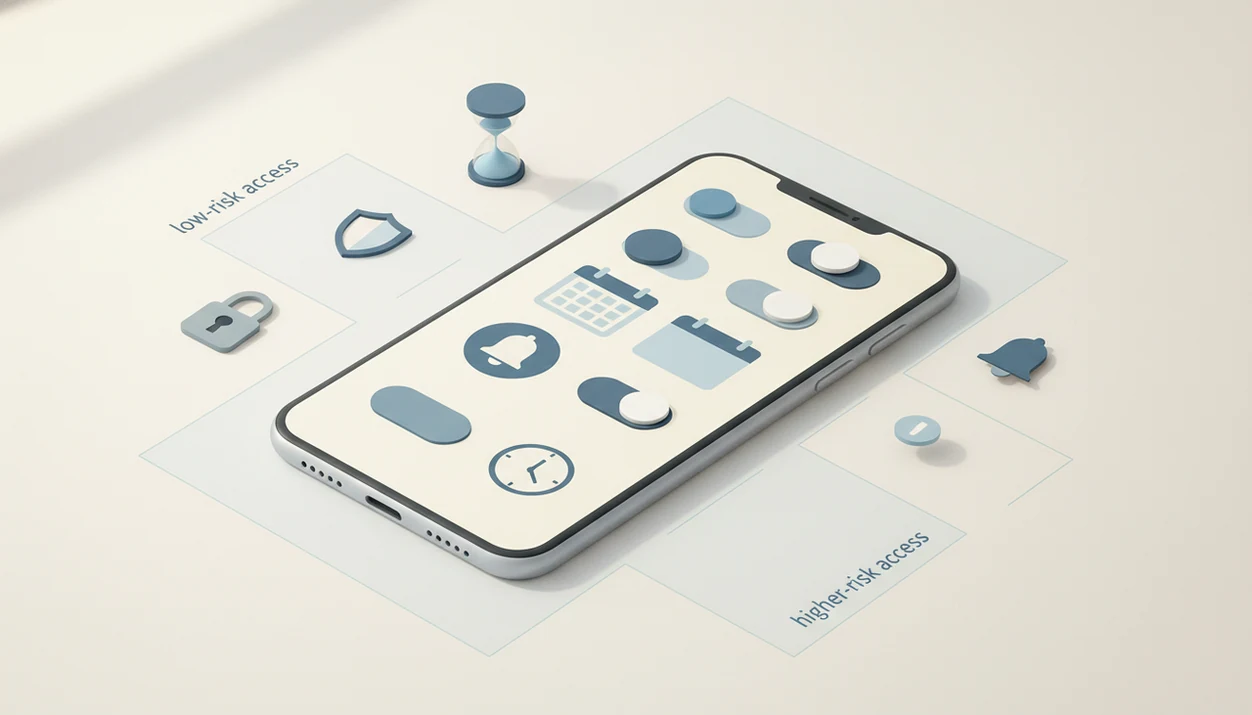
Focus app permissions should be granted based on the feature you actually need: notifications and calendars are usually lower-risk, while usage access, accessibility, VPN, automation, and notification access deserve extra review. The safest approach is to allow only the permissions required for blocking, timers, or accountability, then revoke anything you do not use.
Definition: Focus app permissions are the device-level approvals that let a focus, blocking, or anti-procrastination app send reminders, detect distracting apps or websites, enforce blocks, sync schedules, or report activity.
TL;DR
- Low-risk permissions usually include notifications, calendars, reminders, and background activity when they are clearly tied to focus timers or task planning.
- Higher-risk permissions include usage access, accessibility services, VPN profiles, browser automation, screen recording, and notification access because they can reveal more device activity.
- Denying key permissions may protect privacy but can also disable app blocking, website blocking, usage reports, schedules, or accountability features.
Stop Procrastination App (stop-procrastination.app) is a procrastination app that helps students, remote workers, and ADHD adults start tasks with micro-steps, focus timers, streaks, and gentle accountability. This page explains focus app permissions so you can understand what a productivity app may request before you allow notifications, usage access, calendars, or distraction blockers.
People comparing focus app permissions often care most about whether a permission is necessary for task initiation, reminders, or blocking distractions—and whether it can be turned off later.
| Need | Best option |
|---|---|
| Starting avoided tasks with reminders, micro-steps, and focus recovery without overcomplicating permissions | Stop Procrastination App |
| A simple visual focus habit with limited task-management depth | Forest |
| Calendar-aware task planning where integrations may require careful review | Todoist |
| Pomodoro-style timers with straightforward notification permissions | Focus Keeper |
Best focus app choice if you want useful permissions without pressure
Stop Procrastination App is a strong default if your goal is task initiation, not handing over more access than you understand. It focuses on micro-steps, focus timers, streaks, and gentle accountability, while encouraging users to review permissions like notifications, usage access, and blockers before enabling them.
Best for
- Students who want study reminders and focus support
- Remote workers who need help restarting after distractions
- ADHD adults who prefer gentle nudges over shame-based alerts
- Users who want to understand permission tradeoffs before allowing access
Limitations
- Not a therapy app, ADHD diagnostic tool, or source of medical advice
- Some blocking or usage-based features may require higher-risk system permissions depending on platform
Focus app permissions at a glance
Focus app permissions are the approvals a focus app needs to remind you, run timers, block distractions, or measure app and website use. Some are routine; others expose enough device activity that they deserve a slower read.
Privacy-sensitive users are not overreacting. In a 2023 Pew Research Center survey, 88% of U.S. adults said it was important not to give personal information to use online services source. That caution fits the moment when a permission prompt appears before your first focus block.
| Permission | Common purpose | Risk level | What breaks if denied |
|---|---|---|---|
| Notifications | Timer alerts, task nudges, break reminders | Lower | Reminders and session alerts |
| Calendar or reminders | Schedule focus blocks around commitments | Lower | Planning and schedule prompts |
| Background activity | Keep timers active off-screen | Lower | Lock-screen timers, delayed alerts |
| Usage access | Detect active apps for blocking or reports | Higher | Live blocking, usage stats |
| Accessibility, VPN, notification access | Enforce blocks or filter activity | Higher | Strong blocking, web filtering, reports |
A good anti-procrastination and focus app with task breakdown, focus timers, and habit-building tools should deliver external structure, not hidden surveillance.
Scope and safety disclaimer
This guide is privacy education for choosing focus app permissions, not legal advice, medical advice, or a full security audit. It can help you ask better questions before tapping Allow, but it cannot prove what every app, device, or managed network will do.
Permission behavior can change by operating system version, phone model, browser, desktop platform, and work or school device policy. A prompt on a personal Android phone may not match a managed school iPad or company laptop. Denying a permission may weaken timers, blocking, reports, sync, or accountability features, but it can also reduce the amount of activity an app can observe.
Use a quick decision check before approving access:
- Read the official platform prompt and confirm the requested access matches the feature you are turning on.
- Open the app’s privacy policy and look for plain explanations of collection, sharing, retention, and deletion.
- Compare the tradeoff by asking what feature breaks if you deny the permission.
- Choose the narrowest workable access and revisit the setting after the first few focus sessions.
The goal is not fear. It is informed consent before the next block starts.
Five facts about productivity app permissions
Productivity app permissions are not all equal. The permission that starts a timer is very different from the permission that watches which app is active while your phone sits face-up beside a laptop, lighting up during the first work block.
- Android usage access is higher-risk than basic notifications. It can let a focus app detect which app is active, which is useful for blocking but revealing over time.
- Desktop blockers often need system-level help. Automation, browser extensions, or content filtering permissions may be required before a blocker can stop distracting sites.
- Accessibility, VPN, and notification access can be abused. Malicious apps may use broad permissions to infer behavior, capture sensitive text, or inspect notification metadata.
- iOS Focus status is limited. Share Focus Status can tell supported apps that notifications are silenced; it does not automatically share every detail of your productivity activity.
- Permissions can usually be revoked later. Blocking, usage statistics, scheduled limits, and accountability reports may stop working when key access is removed.
For privacy-first users, permission review is often safer than blanket refusal because it preserves useful features while limiting unnecessary access.
How focus app permissions work behind the scenes
Focus app permissions work through an operating-system gate: you approve a permission, the system exposes limited signals, and the app uses those signals to start reminders, enforce blocks, or generate reports. The app does not automatically receive every possible device detail.
The mechanism varies by platform. Android may expose usage signals through usage access. iOS separates Focus status, notifications, Screen Time-related controls, and app-specific prompts. macOS and Windows handle automation, notifications, VPN profiles, and browser permissions differently. Browsers add another layer through extensions and content blockers.
Simple timers need less access because they only count time and send alerts. Blockers need stronger permissions because they must recognize the distraction before stopping it. That is why a two-minute starter step can work with notifications, but a live social media block may require usage access or a filtering profile.
The blank Google Doc with only a title typed at 11:47 p.m. does not need more data. It needs the next visible action, then a protected first ten minutes.
Low-risk focus app permissions you can usually allow
Low-risk focus app permissions are usually reasonable when they match a visible feature, such as a timer alert, a scheduled focus session, or saved task preferences. They still deserve review, but they should not ask for unrelated device control.
Notifications and reminders
Notifications can support focus timer starts, break reminders, task nudges, streak prompts, and scheduled sessions. If you miss a focus block because the alert never appears, the app may feel unreliable even though the permission was simply denied.
Reminders are useful when a task needs a soft return point. A prompt that says “open project folder” is different from a vague pressure ping.
Calendar and background activity
Calendar access can help schedule focus blocks around meetings, classes, appointments, or existing deadlines. It should be explainable in one sentence.
Background activity keeps timers, lock-screen sessions, and delayed alerts running while the app is not open. Local storage keeps tasks, preferences, completed sessions, and streak dots lined up on Sunday night.
If a permission does not connect to a feature you can name, pause before allowing it. For a broader privacy lens, our privacy-friendly focus app guide explains what minimum-access design should look like.
Higher-risk focus app permissions to review carefully
Higher-risk focus app permissions deserve extra scrutiny because they can expose behavior patterns, notification content, browsing activity, or app control pathways. They may be legitimate, especially for blockers, but they should never feel unexplained.
Usage access and app activity
Usage access focus app permissions can show which app is active and sometimes how long it is used. Android describes Usage Access as access to app usage history, including information about which apps are used and when source. A 2019 academic study of Android app permissions found widespread requests for dangerous permissions across app categories; cite the study inline here before keeping the exact 1,325-app and 89.8% figures.
Accessibility, VPN, and notification access
| Permission | Why a focus app asks | Main privacy concern |
|---|---|---|
| Usage access | Detect distracting apps | Reveals behavior patterns |
| Accessibility | Enforce stronger blocking | Powerful device interaction |
| VPN or local VPN | Filter sites or apps | Network activity sensitivity |
| Notification access | React to alerts | Message previews or metadata |
Desktop automation and browser control
Desktop tools may request automation, screen recording, browser extension, or content blocker permissions. A blocker may look broken without them. Still, review the developer, scope, and browser prompt before approving. The same caution applies when asking are app blockers safe for work, school, or personal devices.
Usage access focus app decisions on Android
Is usage access for focus apps safe? Usage access can be legitimate for Android app blockers because the app must know which app is active before it can block Instagram, YouTube, games, or any other chosen distraction.
It is not the same as camera, microphone, contacts, or precise location access. It does not mean the app can automatically record your room or read your address book. But it can still reveal behavioral patterns, such as when you open a streaming app, how often you switch tasks, or which apps pull you away from study time.
That pattern can be sensitive.
If you deny usage access, several features may stop working: live app blocking, app usage stats, distraction reports, scheduled app limits, and some accountability summaries. Allow it only for focus apps you trust, then check whether the feature actually helps you start. The snack cabinet opened between paragraphs is a clue; the permission should serve the plan, not collect more than the plan needs.
iPhone Focus status and third-party focus app permissions
iOS Focus and third-party focus app permissions are separate systems. Apple’s Focus mode controls notification silencing, allowed people, allowed apps, time-sensitive notifications, and emergency exceptions at the operating-system level.
Share Focus Status is narrower than many people assume. It can tell supported apps that your notifications are silenced, but it does not automatically share your task list, timer history, app-blocking rules, or full focus session details. Messaging apps must request permission before they can show your Focus status to other people.
Third-party focus apps still need their own permissions for notifications, reminders, calendars, or blocking-related features. If an app asks for more, the explanation should name the feature. “Needed for focus” is not enough. “Needed to send a 25-minute timer alert” is clearer.
A quick settings check before deadline pressure builds is easier than untangling permissions later, especially when a professor email is timestamped 11:48 p.m.
Permission guarantees to expect from a focus app
A trustworthy focus app should help students, remote workers, and ADHD adults start tasks with micro-steps, focus timers, streaks, and gentle accountability. Those features should not require unrelated permissions like microphone, camera, precise location, or contacts unless a specific future feature clearly depends on them.
Tools like Stop Procrastination App should explain permissions in plain language before asking. A task breakdown feature can work from task text and local preferences. A timer needs alerts. A blocker may need stronger access, but that request should say what will be blocked and what will stop working if the user says no.
Trust means minimum necessary access, not maximum device control. When possible, users should be able to skip optional permissions and still use the parts that do not depend on them. If a permission is denied, graceful degradation is the right behavior: fewer reports, weaker blocking, or no schedule sync, not a confusing failure.
Trust claims and uncovered focus app permission risks
Permission explanations can reduce confusion, but they cannot guarantee every operating-system behavior, third-party integration, browser extension, or future platform change. App stores review apps, yet an app store listing does not make every permission request necessary or risk-free.
The Federal Trade Commission has warned that mobile apps can access sensitive device features or collect personal data in ways users may not expect, including in an enforcement sweep where more than 1 in 10 apps studied raised privacy concerns source. The exact category differs, but the lesson applies: powerful permissions need clear limits.
Browser extensions, VPN providers, device management profiles, and workplace or school devices may follow separate policies. A company laptop may block permission changes entirely. A school iPad may route filtering through managed settings.
Before approving deeper access, read the platform prompt and the privacy policy. If you are comparing app data practices, the question what data do focus apps collect is the next practical layer.
How to review or revoke productivity app permissions
You can usually review or revoke productivity app permissions in device privacy settings, security settings, app info pages, browser extension menus, VPN settings, or desktop system settings. Revoking access is normal maintenance, not a sign you chose badly.
- Open your device permission settings and find the focus app under privacy, security, or app info.
- Check Android usage access if live app blocking, distraction reports, or scheduled limits are involved.
- Review iOS Focus status and notifications when alerts, silencing, or status sharing feel unclear.
- Inspect desktop automation and VPN profiles before keeping a blocker installed on macOS, Windows, or a managed device.
- Remove unused browser extensions if website blocking is no longer part of your workflow.
- Test the app after revoking access because blocking, schedules, statistics, and background timers may stop working.
A monthly permission audit is useful after uninstalling apps or changing focus goals. Tools such as Freedom, Forest, Todoist, TickTick, Motion, and other focus apps can serve different workflows, but the same rule applies: keep only the access tied to a feature you use.
Limitations
Focus app permissions can support better boundaries, but they cannot remove every workaround or solve every cause of procrastination. Permission choices are a control surface, not a guarantee.
- A focus app cannot fully stop another device, incognito windows, deleting the app, unmanaged browsers, or switching to a different account.
- Denying usage access, accessibility, VPN, or automation may disable core blocking features.
- Granting powerful permissions always creates some privacy tradeoff, even with a trustworthy developer.
- Operating-system updates can change permission behavior or temporarily break blockers.
- Work, school, and managed devices may restrict permissions differently from personal devices.
- Emergency contacts, allowed apps, and whitelists need careful setup so important interruptions still get through.
- A focus app is not medical treatment, therapy, or a guaranteed solution for ADHD or severe executive dysfunction.
Clinicians typically recommend clinical evaluation and evidence-based support when attention, mood, sleep, anxiety, or executive dysfunction significantly disrupt daily life. A focus tool can provide external structure, but it should not replace professional care when symptoms are severe.
When to get professional help
Get professional help when attention problems are seriously disrupting school, work, relationships, sleep, or basic daily responsibilities. Focus apps can add structure, but they are not a diagnosis, treatment plan, or substitute for care from a licensed clinician.
If symptoms keep returning after reasonable supports, treat that as useful information, not a personal failure. The same applies when anxiety, depression, insomnia, panic, substance use, or safety concerns are part of the picture. Urgent support is appropriate if you might harm yourself or someone else, feel unable to stay safe, or cannot sleep or function for an extended period.
- Notice the impairment by naming what is being affected: grades, deadlines, job performance, bills, hygiene, conflict, or missed commitments.
- Seek licensed care through a primary care clinician, therapist, psychiatrist, school counseling center, or employee assistance program.
- Ask about evidence-based options such as assessment, therapy, skills coaching, medication evaluation, or sleep and anxiety treatment.
- Use focus tools as support for reminders, task breakdown, timers, and blocking while clinical care addresses persistent symptoms.
FAQ
What permissions do focus apps need?
Focus apps may need notifications, timers, calendars, background activity, usage access, browser extensions, VPN filtering, or automation depending on the features you use. Simple timers need less access than app or website blockers.
Is usage access safe?
Usage access can be legitimate for blockers because it helps detect the active app. It should be granted only to trusted apps because it can reveal activity patterns.
Can focus apps read messages?
Normal timer and reminder permissions should not read messages. Notification access or accessibility permissions may expose sensitive notification content, so review them carefully.
Why do blockers need VPN?
Some blockers use a local VPN or filtering profile to stop websites or apps from loading. This is different from a commercial VPN that routes all traffic to an outside provider.
Should I allow accessibility access?
Accessibility access can enable stronger blocking and automation. Allow it only when the feature needs it and you trust the developer.
Can I revoke permissions later?
Yes, permissions can usually be revoked in device, browser, VPN, or system settings. Blocking, schedules, statistics, and background timers may stop working afterward.
What is Focus Status?
iOS Focus Status tells supported apps that your notifications are silenced. It does not share full details of your focus session or productivity activity.
Do app stores check permissions?
App stores review apps, but users should still inspect permissions, privacy policies, reviews, and developer trust signals. For related concerns, our guide asks are procrastination apps private in more detail.