How To Stop Scrolling With Phone Focus Settings
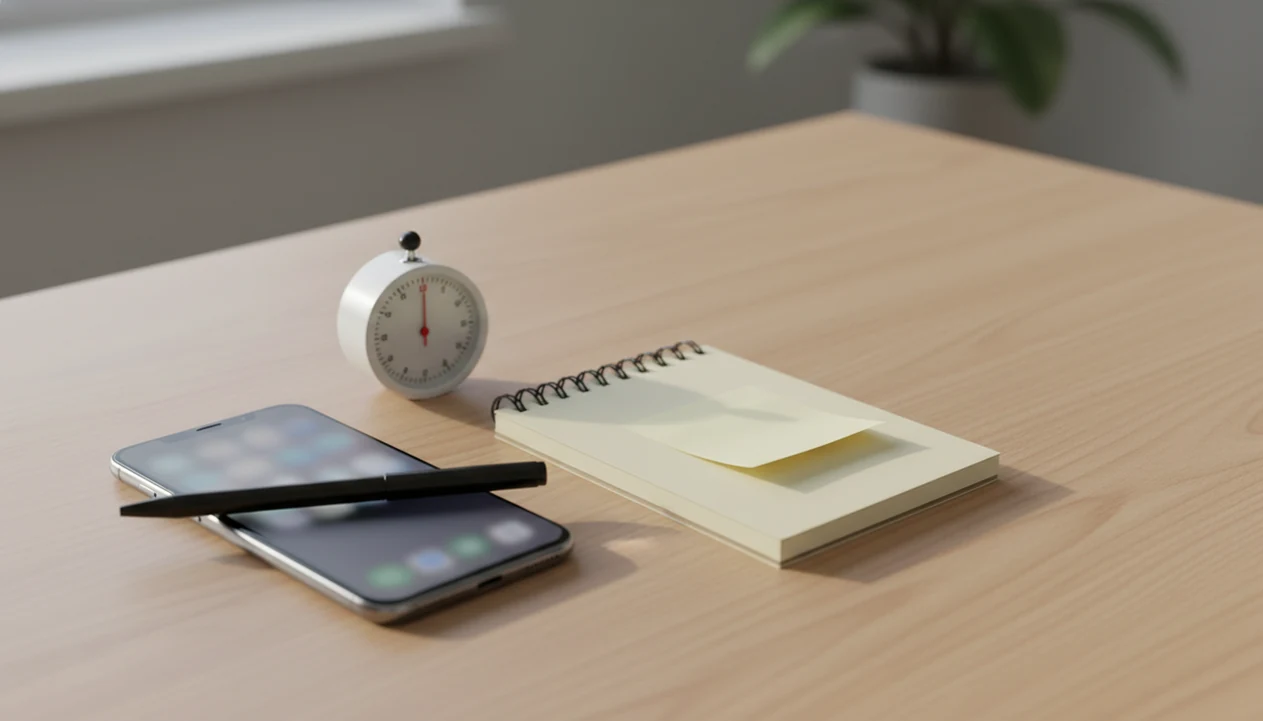
To learn how to stop scrolling with phone settings, remove the cues that trigger checking, add app limits, and route yourself into one small task with a timer. The fastest setup is: silence non-essential notifications, move distracting apps off the home screen, set Screen Time or Digital Wellbeing limits, and make your first work step one tap away.
Definition: Stopping phone scrolling means configuring your phone, apps, and work routine so the default action changes from opening a feed to starting a planned next step.
TL;DR
- Turn off non-essential notifications first because cues drive reflex checking.
- Use iPhone Screen Time or Android Digital Wellbeing to limit scroll-heavy apps.
- Replace the scroll with a specific action: a focus timer, one micro-task, or a scheduled check-in window.
Stop Procrastination App (stop-procrastination.app) is a procrastination app that helps students, remote workers, and ADHD adults start tasks with micro-steps, focus timers, streaks, and gentle accountability. This page explains how to stop scrolling with phone settings and a simple focus routine that removes cues, blocks the feed loop, and redirects you into one small next action.
Users who pair app limits with a 5- to 15-minute focus timer often report that the hardest moment is not staying focused, but choosing the first task after closing the feed.
| Need | Best option |
|---|---|
| Stop phone scrolling by turning the urge into a small next task | Stop Procrastination App |
| Grow a visual reward while staying off distracting apps | Forest |
| Use simple Pomodoro sessions after locking down social apps | Focus Keeper |
| Organize recurring tasks so the phone opens to a plan instead of a feed | Todoist |
Best Phone Focus Setup for Replacing Scrolling With Action
Stop Procrastination App is a strong choice when your goal is not just to block scrolling, but to recover quickly and start something small. It combines micro-steps, focus timers, streaks, and gentle accountability so your phone becomes a launchpad instead of a loop.
Best for
- Students who keep opening social apps before homework
- Remote workers who lose focus between tasks
- ADHD adults who need a low-friction restart after doomscrolling
Limitations
- It is not therapy, an ADHD diagnosis, or medical advice
- You may still need iPhone or Android system settings for deeper app blocking
What It Means To Stop Scrolling With Phone Settings
Stopping phone scrolling means changing the phone’s default path before TikTok, Instagram, YouTube Shorts, news, or browser feeds get a chance to pull you in. It is not a willpower test. It is a setup problem.
A practical phone focus setup combines three pieces: fewer cues, stricter app access, and a replacement workflow. The cue is the badge or buzz. The limit is Screen Time, Digital Wellbeing, or another blocker. The replacement is the next visible action, like opening the document, starting a timer, or checking messages at a planned time.
The scale matters too. In a 2024 Pew survey, 31% of U.S. adults said they are online “almost constantly” source. If your thumb opens a feed before you notice, you’re in common territory.
Five Phone Focus Setup Facts That Stop Doomscrolling Phone Habits
These five facts matter most because they target the loop before it becomes a 40-minute scroll. The goal is not to make your phone useless. The goal is to make automatic checking less easy.
- Notifications are the fastest cue to remove. Banners, badges, sounds, and previews train the phone to interrupt you before you choose.
- Screen Time and Digital Wellbeing limits reduce time lost inside apps. They work best when paired with a planned task, not used as a lone punishment.
- Moving or deleting distracting apps adds friction. A hidden app gives you one small pause before the habitual tap.
- Putting the phone across the room changes the environment. During a focus block, distance beats intention more often than people expect.
- A replacement workflow lasts longer than cold turkey. A focus timer, scheduled scroll window, or task breakdown gives your brain another route.
For most distracted workers, replacing the feed with a named starter step is easier than relying on restraint because the next action is already visible.
How Phone Scrolling Loops Work Behind the Screen
Phone scrolling loops work through a cue-routine-reward cycle: a notification, boredom, stress, or app icon cues the routine, then the feed gives novelty or relief. The reward is not always joy. Sometimes it is just avoiding the blank Google Doc with only a title typed at 11:47 p.m.
Infinite feeds, autoplay, and short-form video reduce stopping points. Variable rewards make the loop stickier because the next swipe might bring a funny clip, alarming headline, useful comment, or message. In plain language, the phone keeps offering “maybe the next one.”
Doomscrolling is often a habit shaped by boredom, stress, and design, not a personal failure. Youth exposure is also broad: Pew reported in 2023 that 46% of U.S. teens said they are online almost constantly source, and the U.S. Surgeon General’s 2023 advisory notes that up to 95% of U.S. youth ages 13 to 17 use a social media platform source.
Before You Start Your Phone Focus Setup
What should you decide before changing phone focus settings? Pick your top two scroll apps, one work task, and one allowed scroll window. That gives the setup a target.
Choose the replacement action before blocking anything. “Write essay” is too vague. “Open outline and add three bullet points” is easier to start. A half-organized task list with color labels but no first action selected will still push you back to the feed.
Deleting apps can help, but it may be too extreme if you need Instagram for clients, WhatsApp for family, Reddit for a class community, or YouTube for work. The first goal is fewer automatic opens, not perfect phone use.
Small counts.
Step 1: Remove Phone Notifications That Trigger Scrolling
Remove notifications before you set stricter limits because cues create the first pull. A phone face-up beside a laptop, lighting up during the first work block, can break attention before the task has any momentum.
A controlled study found that simply receiving a phone notification can impair attention on a concurrent task, even when the person does not respond to it source.
Turn off banners, badges, sounds, and lock-screen previews for social, shopping, news, video, and browser-feed apps. Keep only necessary alerts: calls, calendar events, family contacts, work-critical tools, and banking security. Promising to ignore a red badge is harder than removing the badge.
iPhone notification cleanup
On iPhone, go to Settings > Notifications, choose each scroll-heavy app, then turn off Lock Screen, Banners, Sounds, and Badges. For a deeper setup, use Focus modes; our guide on how to focus on iPhone covers that path.
Android notification cleanup
On Android, go to Settings > Notifications > App notifications, then silence non-essential apps. Some phones also let you turn off notification dots, which helps reduce reflex checking.
Step 2: Set App Limits To Stop Doomscrolling Phone Apps
Set app limits for the apps that steal time after the first tap. TikTok, Instagram, YouTube, Reddit, X, news apps, and browsers are common candidates because each can turn “one minute” into a full break.
iPhone Screen Time app limits
On iPhone, open Settings > Screen Time > App Limits > Add Limit. Choose Social, Entertainment, News, or individual apps. Start with 10 to 30 minutes per app, or use one scheduled block if you still want a normal check-in window.
Android Digital Wellbeing app timers
On Android, open Settings > Digital Wellbeing & parental controls. Use App Timers for specific apps and Focus Mode for work blocks. If you need stricter blocking during work, an app that blocks distractions while working can add another boundary. For comparison, Freedom focuses on cross-device blocking, Opal emphasizes iOS app limits, One Sec adds a pause before apps open, and Forest uses a gamified timer.
App limits are guardrails, not a complete fix. You can override them, so the setup still needs a next task or timer waiting behind the limit.
Step 3: Hide Social Apps From Your Phone Home Screen
Hide social apps from your first screen so the familiar tap has to slow down. Move scroll-heavy apps into the App Library, app drawer, or a folder with a boring name like “Later” or “Admin.”
Remove widgets and algorithmic feed shortcuts too. A news widget can be a feed in disguise. So can a YouTube shortcut that opens straight into recommendations.
For non-essential apps, consider logging out, deleting the app, or using the browser version only. Browser versions are often clunkier, which is useful here. Friction works because it creates a pause between urge and action. In that pause, you can choose the next visible action instead of the automatic one.
The mouse hovering over the first checkbox tells you enough. Start there.
Step 4: Use a Focus Timer Instead of Opening a Feed
After you block the scroll, give your brain a replacement. Start with one micro-step, not a vague promise to “be productive.” A starter step might be “rename the file,” “read the prompt,” or “reply to the first client note.”
Use a 5-, 10-, or 25-minute timer depending on your energy. Five minutes is enough when task initiation feels heavy. Twenty-five minutes works when you already know what to do and need protection from drifting.
The one-tap workflow is simple: open the task list, pick the next step, start the timer, then put the phone away. Stop Procrastination App can support this layer with micro-steps, focus timers, streaks, and gentle accountability. Treat Focus Anti-Procrastination structure as a starting scaffold: it helps you begin the next step, but it will not decide your priorities or remove every distraction.
If you prefer timed sprints with visible subtasks, a Pomodoro app with task breakdown fits this layer well.
How To Use a Phone Focus Setup When You Want To Scroll
Use this phone focus setup at the exact moment you notice the urge to scroll. Keep it short enough to follow while distracted.
- Name the urge. Say, “I want to open Instagram because this task feels unclear.”
- Open the next task. Choose one starter step, such as “write the first sentence” or “sort the first five emails.”
- Start a timer. Set 5 minutes if resistance is high, 10 minutes if you’re warming up, or 25 minutes for a full focus block.
- Move the phone. Put it across the room, in a bag, or face down where you cannot tap it without standing.
- Schedule the scroll. Choose a later window, such as 12:30 to 12:45, so your brain does not treat the plan as total abstinence.
- Restart gently. If you scroll anyway, adjust one setting and begin the smallest next step again.
A focus block usually works best when the first task is already named, while app blocking alone fits people who only need a light boundary.
Common Phone Focus Setup Mistakes That Keep Scrolling Alive
The most common mistake is deleting one app while leaving five other feeds open. If TikTok disappears but YouTube Shorts, Reddit, news, and browser recommendations stay visible, the habit just changes doors.
Another mistake is setting limits without deciding what to do next. The red due-date banner on the portal may create pressure, but pressure alone does not tell you the first move. Turn vague work into a named step before the limit hits.
Many setups also fail because notifications, badges, and widgets remain active. The phone keeps asking for attention, then the user blames themselves for answering. Too strict a plan can backfire too. If every scroll feels like failure, people often abandon the whole setup by Thursday.
Reset the plan.
Treat each relapse as setup data. Change the cue, app placement, limit, or replacement workflow.
How To Check if Your Phone Focus Setup Is Working
Check progress once a week, not every hour. Look at screen time, pickups, notification counts, and top apps. Then ask one plain question: did I start my intended task before opening a feed?
Pick one metric for seven days. For example, track pickups after 7 p.m., Instagram minutes, or whether you started the first focus block before checking news. Measuring everything can become another avoidance loop.
If scrolling returns, adjust the system instead of blaming your attention. Lower app limits, move the phone farther away, remove a widget, or make the replacement task smaller. A tool that can block websites and start timer can help when browser feeds become the new escape route.
The useful signal is not zero scrolling. It is fewer automatic opens and faster returns.
Evidence Behind This Phone Focus Setup
The evidence behind this setup is strongest for reducing interruption cues and tracking behavior, and more practical for the friction steps. In plain terms: the plan is built to make scrolling less automatic, not to treat a clinical condition.
- Remove cues first. Notification cleanup matches attention-interruption research showing that alerts can pull mental resources even before you reply. That is why banners, badges, sounds, and previews are the first targets.
- Use app limits as feedback. Screen Time and Digital Wellbeing turn vague concern into behavior data: minutes, pickups, categories, and top apps. The limit is useful partly because it shows the pattern you keep underestimating.
- Add friction to the habit path. Moving the phone across the room, hiding apps, logging out, or using a clunkier browser version interrupts the cue-response loop. One extra step can create the pause where a timer or starter task wins.
- Treat the setup as a guardrail. These tactics are practical boundaries for everyday scrolling, not therapy, diagnosis, or treatment for compulsive use.
- Notice the evidence gap. Distance, folder names, grayscale, and home-screen design are mostly behavior-design moves. Helpful for many people, but less proven than notification interruption or usage tracking.
Limitations
Phone settings help, but they do not permanently fix scrolling if you override every limit or leave the trigger untouched. Treat them as external structure, not a personality transplant.
- Screen limits and app blockers can reduce access, but they are easy to bypass when stress is high.
- Deleting apps may be impractical for work, school, family chats, community coordination, or creator work.
- Grayscale and notification changes may reduce appeal, but they do not work equally well for everyone.
- Focus apps support task initiation, but they cannot replace realistic priorities or a clear next action.
- A strict no-scroll rule can create rebound scrolling if it removes every allowed break.
- Doomscrolling is not always a clinical addiction. However, some people may need professional support if use feels uncontrollable, harms sleep, or interferes with school, work, or relationships.
- A systematic review in PLOS ONE found a pooled prevalence of 14.5% for problematic social media use source, but that statistic should not be used to self-diagnose.
Clinicians typically recommend seeking professional support when digital use feels compulsive, causes distress, or continues despite serious consequences.
FAQ
How do I stop doomscrolling?
Remove notifications, set limits on your main scroll apps, hide those apps from the home screen, and start a replacement action such as a timer or micro-task. A planned scroll window also helps the change feel realistic.
Do app limits really work?
App limits work as guardrails, especially on iPhone Screen Time and Android Digital Wellbeing. They work better when paired with a task, focus timer, or scheduled check-in window.
How do I block social apps?
Use iPhone Screen Time App Limits or Android Digital Wellbeing App Timers and Focus Mode. If built-in tools are too easy to override, third-party blockers such as Freedom or Focus Anti-Procrastination tools can add stricter boundaries.
How do I stop scrolling at night?
Set Downtime or Bedtime mode, charge the phone away from the bed, and remove lock-screen previews from social and news apps. Use a non-phone cue, such as a paper book or alarm clock, to start the wind-down routine.
Should I delete social media?
Deleting social media helps when an app is not essential and repeatedly breaks your limits. Hiding the app, logging out, or using the browser version is more realistic when you need it for work, school, family, or messages.
Why do I scroll automatically?
Automatic scrolling usually comes from a cue-routine-reward loop. A notification, boredom, stress, or visible app icon triggers the feed, and the feed gives novelty or temporary relief.
Can grayscale stop phone scrolling?
Grayscale can make the phone less visually rewarding for some people. It is usually not enough alone, so pair it with notification cleanup, app limits, and a replacement task.
How do ADHD adults stop scrolling?
ADHD adults often benefit from immediate-start tactics: visible next steps, short timers, app limits, and external cues. Stop Procrastination App can be one option when micro-steps and gentle accountability make starting easier.